
For Web browsing the standard browser to use is Google Chrome.
If you have a society email address, then you should keep the web browser signed in to your account - you will need to know your email password to do this.
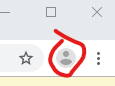 You can tell whether or not you are signed in by looking at the top-right corner of the Chrome window. If it looks like this
then you are not signed in. |
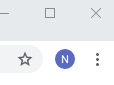 However, if it shows the initial letter of your first name
(or your photo if you have registered one with your Google profile) then you are signed in. |
The first time that you sign in on the browser, you will be asked if you wish to sync your data.
(If you are not asked this question, I may have already set this up for you).
You should accept this option as it means that your browsing history, bookmarks, saved passwords etc are available no matter which computer you are using.
When asked if you want to link Chrome Data to this account - select Link.
Now that your Chrome data is linked across all computers, you can use any of the available computers.
When you log-in to an account on a website, Chrome may ask you if you want to save your password. Generally, you should say yes, as it means that Chrome can log you in autmatically next time. There are no security issues about this, as the passwords are stored encrypted. In fact, having the web browser remember your passwords can assist you in utilising more complex passwords and encourage you to use separate passwords for every account.
You may notice that Microsoft Edge is also available as a web browser (because Microsoft ship it with the Windows 10 system). There used to be many problems with this browser. However, Microsft have now updated this browser to be based on the same technology as Chrome, so it is now a reliable browser.