The simplest way to access your email is to use the Chrome web browser to access your GMail account.
If you followed the recommendations here then you will have set your browser up so that is logged into your Society Google account.
When you open a New Tab, there will be a link to GMail (top right of the Chrome window) which will take you directly to your email.
If prefer to use Windows Mail, then click on the envelope icon on the taskbar. It may be probably already setup for you -
if not, then you need to add a Google account using your GMail address and password. Note that you can add additional
email accounts to Windows Mail, so if you have other, personal, email accounts that you want to check, you can add these too.
If you don't want to use Windows Mail and you find its taskbar icon a nuisance, just right-click on the icon and select 'unpin from taskbar'.
These two options are not exclusive - you can set them both up and use either (or both) as it suits you.
If you have previously used Thunderbird eMail, then you may find that your GMail account shows a couple of odd folders titled [Gmail]/Junk and [Imap]/Drafts.
You may safely delete these folders as they are Thunderbird specific and are just synonyms for the existing GMail Spam and Drafts folders. To delete these folders from Gmail proceed as follows:
- Select the Settings icon (looks like a gear wheel, top right, just below the Society's logo) and choose Settings
- In the Settings view, select Labels
- Scroll down until you see the [Gmail]/Junk label - look across the row and find the removeoption and click it
- Scroll down until you see the [Imap]/Drafts label - look across the row and find the removeoption and click it
Inbox in the left-hand column, to exit Settings mode
Making GMail work for you - the quick version ...
- What happens with GMail is that you assign labels to messages, they then appear under folders. The difference is that, if it suits, you can assign more than one label to a message, which means the same message appears in more than one folder - can be useful.
You assign a label by clicking on the Label button:

Note the other buttons here (hover the mouse over them to see what they are called) - I may refer to the others later.
- By default, GMail groups messages into conversation threads. So, if you receive a message that is a reply to something you sent, in reply to something etc - you see all the relevant messages grouped together. This is usually useful but can be confusing if you receive completely unrelated messages that have the same subject.
- Now, I mentioned that messages can have more than one label. When you first receive a message it has the INBOX label and so appears in the INBOX. If you click on the Archive button, then the INBOX label is removed. If the messagehas no other labels, then it appears that it has disappeared altogether - however, you can still find it in the All Mail folder (left hand column - click on More if you can't see it). If the message has other label(s) then it will also appear in those folder(s).
- You can label a message and remove it from INBOX in one step by clicking on the Move To button.
If you delete a message, it goes into the Bin folder, where it stays for 30 days.
- You can write rules to assign labels to messages automatically.
The simplest way is, while you have a message open, click on the 3-dots button (to the right of the label button) and select Filter Messages like these. Then you can select whether you are filtering by the sender, or the subject or particular words in the Email. Then click on Create Filter - on the next screen select the label you require (or create a new one), and you are done.
- If you need to review or modfiy rules that you have created, then select Settings ....
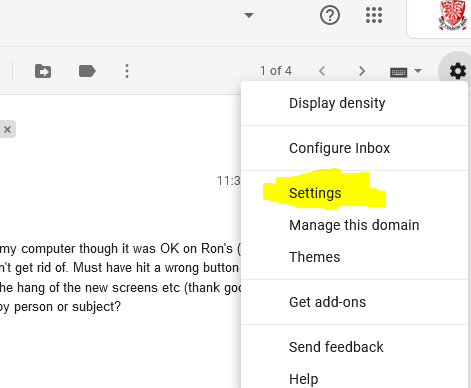
From the Settings screen, select Filters and blocked addresses - there you can edit or delete the rules you have created.
You can also select Labels from the settings screen which allows you to confugure which labels appear on the left side of the screen and which appear under More
Remember, you can use GMail anywhere - at home, library, on any computer, smart-phone or tablet.
You just need to know your email address (firstname.lastname@anesfhs.org.uk) and your password.
For more information about using GMail, see this GMail Tutorial
